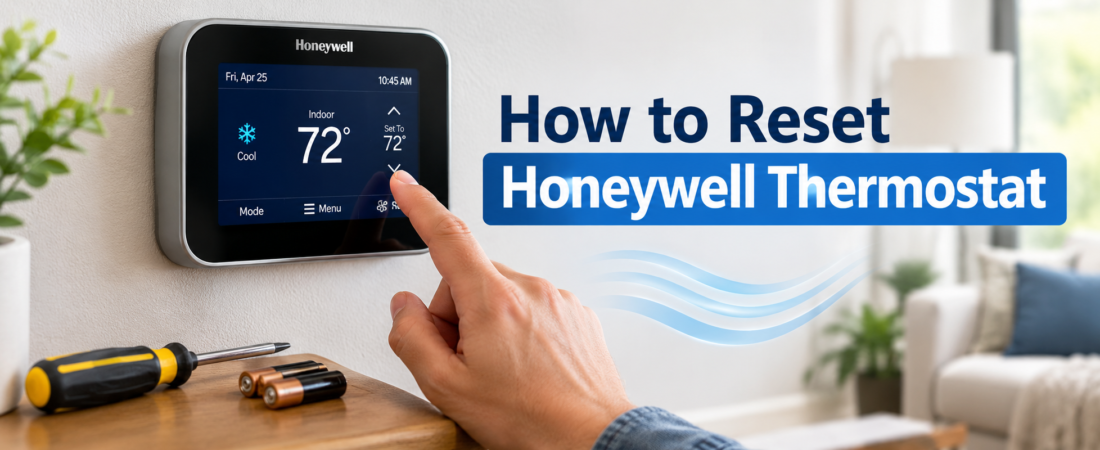
Learn how to reset a Honeywell thermostat safely, including battery, factory, Wi-Fi, and programmable models with simple troubleshooting tips. Knowing how to reset Honeywell thermostat settings can save you a frustrating service call when the display freezes, the temperature seems wrong, or your heating and cooling system stops responding. Honeywell makes many thermostat models, so the reset process isn’t identical on every unit. Some models reset with a simple battery removal, while others have a dedicated reset option in the menu. The good news is that most resets are straightforward once you know which type of thermostat you have.
A reset is also different from simply changing the temperature. When you reset the thermostat, you are essentially clearing certain settings or restarting the device so it can communicate properly with your HVAC system again. Before doing anything, take a moment to identify your thermostat and decide whether you need a simple restart or a complete factory reset.
What Does Resetting a Honeywell Thermostat Do?
Resetting a Honeywell thermostat restarts or clears selected thermostat settings, depending on the model and reset option you choose. A basic restart may help with a frozen screen or temporary communication problem without changing your programmed schedule. A factory reset is more thorough and can erase saved temperature schedules, clock settings, Wi-Fi information, and other personalized preferences.
When Should You Reset a Honeywell Thermostat?
A reset can be useful when your Honeywell thermostat has a blank or frozen display, isn’t responding to button presses, shows an incorrect temperature, fails to control heating or cooling correctly, or has trouble reconnecting to a Wi-Fi network after other troubleshooting steps. It can also help after replacing batteries or making changes to your HVAC equipment. However, a reset isn’t always the answer. If the HVAC system has an electrical, wiring, furnace, air conditioner, or safety problem, resetting the thermostat won’t fix the underlying issue.
How to Reset Honeywell Thermostat: Basic Method
For many battery-powered Honeywell thermostats, start by switching the system to OFF. Remove the thermostat’s batteries and wait several minutes before putting them back in. Make sure each battery is installed in the correct direction, then turn the system back to heating or cooling mode and set the desired temperature. This simple restart can clear temporary glitches and is often the first thing worth trying.
How to Reset a Honeywell Thermostat With Batteries
Battery-powered Honeywell thermostats generally have an accessible battery compartment, although its location varies between models. Turn the thermostat off before removing the batteries. Take all batteries out, wait a few minutes, and then install fresh batteries if the existing ones are old or weak. Once the display comes back on, check the time, temperature, and programmed settings. If the thermostat immediately loses its settings again, the batteries or thermostat itself may need further attention.
How to Factory Reset a Honeywell Thermostat
A factory reset returns many Honeywell thermostats to their original configuration. On models that provide a reset option through the display, open the Menu and look for Reset, Factory Reset, or a similar option. Follow the prompts shown on the screen. Because the exact menu names vary, don’t assume that every Honeywell thermostat uses the same sequence. After the reset, you may need to enter the date, time, temperature schedule, system settings, and Wi-Fi information again.
How to Reset Honeywell Programmable Thermostat
Programmable Honeywell thermostats often store heating and cooling schedules for different times of the day. If your thermostat is behaving strangely, first check whether the issue is actually caused by the schedule. A factory reset can remove those programmed settings, so write down your preferred temperatures before resetting. Afterward, configure the thermostat again according to your daily routine instead of assuming the factory schedule will match your needs.
How to Reset Honeywell Wi-Fi Thermostat
Wi-Fi-enabled Honeywell thermostats may offer separate reset options for Wi-Fi, scheduling, or the entire thermostat. If your thermostat works normally but won’t connect to your home network, a Wi-Fi reset may be more appropriate than a full factory reset. Check the thermostat’s menu for network or Wi-Fi settings and follow the reset instructions provided for your specific model. After clearing the network settings, you will generally need to reconnect the thermostat to your wireless network and, where applicable, the companion app.
How to Reset Honeywell Home Thermostat
Honeywell Home includes several thermostat families, including models with touchscreen controls, smart features, and app connectivity. The reset procedure depends heavily on the model. Some devices provide reset controls directly through the touchscreen, while others use a combination of buttons or require removing the batteries. If you can find the model number printed on the thermostat or inside the battery compartment, use it to locate the correct instructions rather than trying a reset sequence designed for a different model.
How to Reset Honeywell Thermostat Without Losing Settings
If you’re trying to solve a minor problem without deleting your schedule, avoid a factory reset unless it’s necessary. Start with a basic restart, such as turning the thermostat off and back on or temporarily removing the batteries on a battery-powered model. This approach can resolve temporary software or display problems while preserving your programmed preferences. If the problem continues, you can then consider a model-specific reset.
Honeywell Thermostat Reset Button: Where Is It?
Not every Honeywell thermostat has a physical button labeled RESET. Depending on the model, the reset function may appear on the screen, inside a menu, behind the faceplate, or as part of a particular button combination. This is one reason it’s important to identify the exact model before following instructions found online. Two Honeywell thermostats can look similar while having completely different reset procedures.
What to Do Before Resetting Your Thermostat
Before performing a factory reset, record the settings you don’t want to lose. Take note of your heating and cooling temperatures, weekly schedule, clock settings, and Wi-Fi information if your thermostat has smart features. Also check whether the thermostat is receiving power and whether the HVAC system itself is switched on. A few minutes of preparation can save you from having to rebuild your settings from memory afterward.
Honeywell Thermostat Says “Wait” After Reset
Seeing WAIT after a reset doesn’t necessarily mean something is wrong. Many thermostats intentionally delay heating or cooling for a short period to protect the HVAC equipment from rapid cycling. Give the system a little time to respond instead of repeatedly changing the settings. If the message remains for an unusually long time or the system never starts, check the HVAC equipment, power supply, air filter, and thermostat connections, or contact a qualified technician if the problem appears electrical or mechanical.
Honeywell Thermostat Is Blank After Reset
A blank thermostat screen can have several causes, including depleted batteries, a power interruption, a tripped circuit breaker, or an HVAC equipment problem. If your model uses batteries, replacing them with the correct fresh batteries is a sensible first step. If the thermostat is powered directly by the HVAC system, check the relevant breaker without opening electrical components. If power is present but the display remains blank, professional diagnosis may be necessary.
Honeywell Thermostat Is Not Responding
When the buttons or touchscreen stop responding, a restart may clear a temporary software problem. Turn the thermostat off and perform the appropriate basic reset for your model. If the controls remain frozen afterward, don’t repeatedly force buttons or remove the thermostat from its wiring. A damaged display, power problem, wiring issue, or internal fault could be responsible.
Resetting the Thermostat Doesn’t Fix the HVAC Problem
A thermostat controls your HVAC system, but it isn’t the entire system. If resetting the thermostat doesn’t restore heating or cooling, the problem could be elsewhere. A dirty filter, failed furnace component, faulty air conditioner part, electrical issue, condensate problem, or other equipment fault can prevent normal operation. In that situation, repeatedly resetting the thermostat is unlikely to help and may simply delay the real repair.
Do You Need to Turn Off the Breaker?
You usually shouldn’t turn off the home’s HVAC breaker just because you want to perform a normal thermostat reset. Many thermostat resets can be completed through the thermostat itself. However, electrical work is different. If you’re removing wiring, opening equipment panels, or investigating an electrical fault, proper safety procedures matter. When you’re unsure whether a task involves live electrical components, stop and get help from a qualified HVAC professional.
How Long Does a Honeywell Thermostat Reset Take?
A basic thermostat restart normally takes only a few minutes, although the HVAC system may have a built-in delay before heating or cooling starts. A factory reset itself can be quick, but restoring your preferred schedule and reconnecting Wi-Fi can take longer. Don’t judge the reset solely by how quickly the screen comes back on. Give the system enough time to complete its normal startup and protection cycle.
How to Set Your Honeywell Thermostat After a Factory Reset
Once the reset is complete, check the displayed time and date first. Then select the appropriate heating or cooling mode and choose your preferred temperature. If the thermostat is programmable, recreate your weekday and weekend schedule. For a smart thermostat, reconnect the Wi-Fi network and confirm that the mobile app communicates with the device. Finally, allow the HVAC system to run long enough to confirm that it responds correctly.
Common Mistakes to Avoid
One of the biggest mistakes is using instructions for the wrong Honeywell model. Another is performing a factory reset when a simple restart would have solved the problem. People also sometimes forget that a reset can erase schedules and network information. Before resetting, identify the model, record important settings, and choose the least disruptive reset option that addresses the problem.
How to Find Your Honeywell Thermostat Model
The model number is often printed on the thermostat’s front, behind the removable faceplate, near the battery compartment, or on a label attached to the unit. Look for a combination of letters and numbers rather than relying only on the thermostat’s appearance. Once you know the model, you can follow instructions specifically designed for that device instead of experimenting with button combinations.
When to Call an HVAC Professional
If the thermostat repeatedly loses power, shows signs of electrical damage, fails after fresh batteries, or cannot control the HVAC system after a correct reset, it’s time to look beyond the thermostat. Problems involving wiring, furnaces, air conditioners, breakers, or internal electrical components can create safety risks. A qualified HVAC technician can test the system and determine whether the thermostat or another component is responsible.
Conclusion
Learning how to reset Honeywell thermostat is useful because many everyday thermostat problems are surprisingly simple to resolve. Start with the least disruptive option, especially a basic restart, before moving to a factory reset. Remember that Honeywell has many thermostat models, so the exact procedure can vary. If a reset doesn’t solve the problem, don’t keep repeating it. Check the HVAC system itself and get professional help when the issue involves wiring, power, or equipment failure.
FAQs
1. How do I reset my Honeywell thermostat?
The method depends on the model. Many battery-powered models can be restarted by turning the system off, removing the batteries for several minutes, and reinstalling them. Other models provide reset options through the thermostat menu.
2. Will resetting my Honeywell thermostat erase the schedule?
A basic restart may not erase programmed settings, but a factory reset commonly restores default settings and can remove your saved schedule. Record your settings before performing a factory reset.
3. Why is my Honeywell thermostat not responding?
A frozen display, weak batteries, power interruption, or thermostat fault can cause unresponsiveness. Try the appropriate basic restart first, then check the thermostat’s power source.
4. Why does my Honeywell thermostat say WAIT?
The WAIT message can indicate a built-in HVAC protection delay. Give the system time to respond. If the message persists unusually long and the HVAC system doesn’t start, further troubleshooting may be needed.
5. How do I reset a Honeywell Wi-Fi thermostat?
Many Wi-Fi models have separate network reset options in their menus. A Wi-Fi reset is preferable when the thermostat works normally but has lost its network connection because it may avoid unnecessarily deleting other settings.
Read also: Garage Door Cable Replacement Cost & Safety Guide